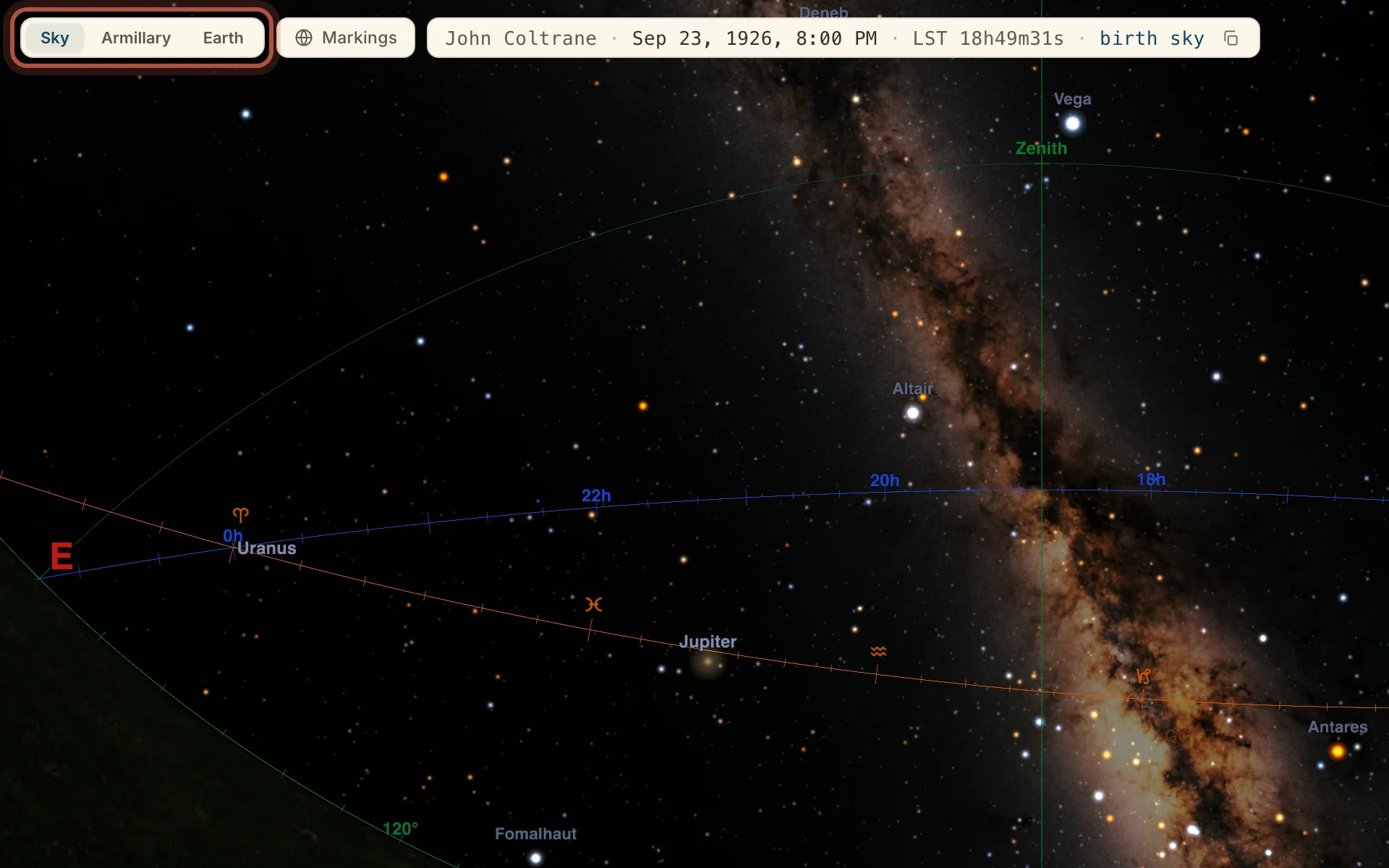
The Sphere draws the chart on the tab you are on in three dimensions, at the timeline's moment, so you can look at the sky the chart was cast for. The switch at the top picks the view. Sky is the real sky over the chart's place at the chart's moment. Armillary is the celestial sphere from outside, with its circles, for working primary motion. Earth is the astrocartography map. A phone has Sky and Earth only.
Sky, Armillary and Earth, at the top left
The status line beside Markings reads the moment on show and the local sidereal time. On a chart it reads birth sky while you sit on the birth moment, and once you move away it offers Back to birth.
You can steer the Sky view by pointing the phone, so the sky on screen follows the direction you face. The first time, tap Allow pointing. Tap the compass button to hold the view, and again (Center on your phone) to follow the phone once more. Drag to steer by hand.
Markings for the Sky view
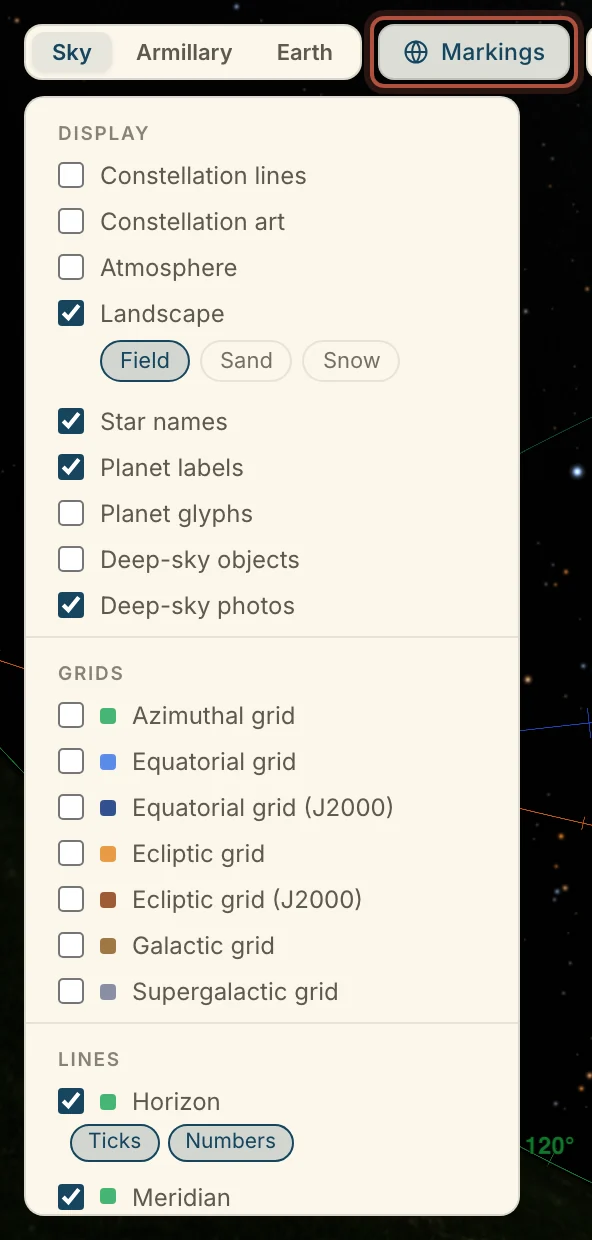
Markings decides what the Sky view draws, from the constellation figures and star names to the grids and reference circles, so you can keep the sky as plain or as detailed as the work needs. Click Markings to open it.
Display turns on the constellation lines and art, the atmosphere and landscape, the names of stars and planets, and deep-sky objects. Grids, Lines and Points add the reference circles and points, such as the horizon, meridian, equator and ecliptic, the poles, and the equinoxes and solstices.
Markings, on the Sky view
On a computer, the bar along the bottom has a button for the constellation figures and Reset view, which puts the camera back. A phone has Reset view only, and Markings fills the screen with its sections listed.
The Sphere inspector
The inspector gives the details of anything you click in the Sky view, so you can read a body's position and its rising and setting without leaving the Sphere. Click a planet, a star or a deep-sky object to open it. A star gives its constellation, magnitude, nature, longitude, and its rising, culmination and setting. A planet gives its position, azimuth and altitude, and rising and setting. The ⓘ beside a star's name opens its entry in Meanings.
The Armillary
The Armillary, on the computer only, shows the celestial sphere from outside with its circles drawn in, which is where you watch primary motion carry the planets round. Drag to turn it. Click a planet to select it, and a bar appears with its name and any parallel or contraparallel it makes. Play primary motion turns the sphere, the slider sets the turn by hand, and Back to the birth moment returns it to the start. Pin circle holds the selected planet's circle of position in place while you play, so the other bodies are carried onto it.
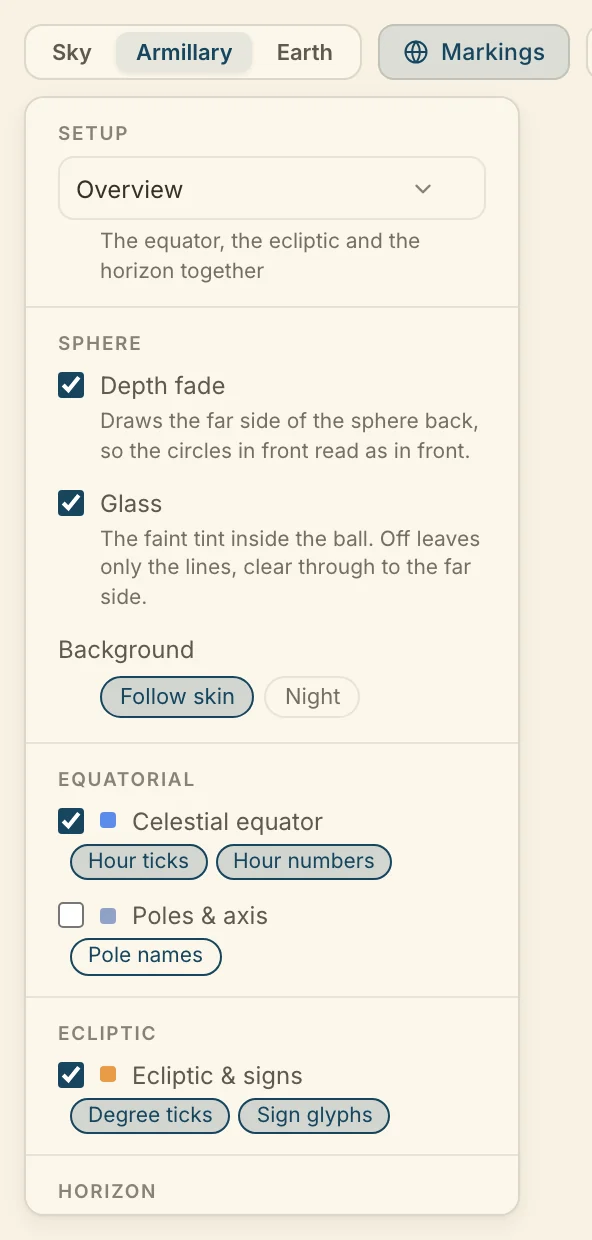
Markings on the Armillary opens with Setup, a set of ready arrangements of its circles.
Overview draws the equator, the ecliptic and the horizon together.
Directions is set up for primary directions, with the circles the sphere turns a promissor onto.
Horizon draws the angles in space, what rising, setting and culminating are.
Declination draws the parallels, contraparallels and the out-of-bounds limits.
Zodiac draws the ecliptic and its signs against the horizon.
The Armillary's Markings, with Setup at the top
A setup switches only the circles, so the look, the earth and the houses stay as you set them. Sphere sets the look, such as Depth fade, which draws the far side back. Below it the circles sit in groups, Equatorial, Ecliptic, Horizon, Chart, Bodies and Declination, and you tick a row to draw it, after which Setup reads Custom. Parallels and contraparallels, in the Declination group, lists the chart's declination contacts beside the sphere, and pointing at a row draws that contact, while a click holds it as you turn the sphere.
Primary directions on the Armillary
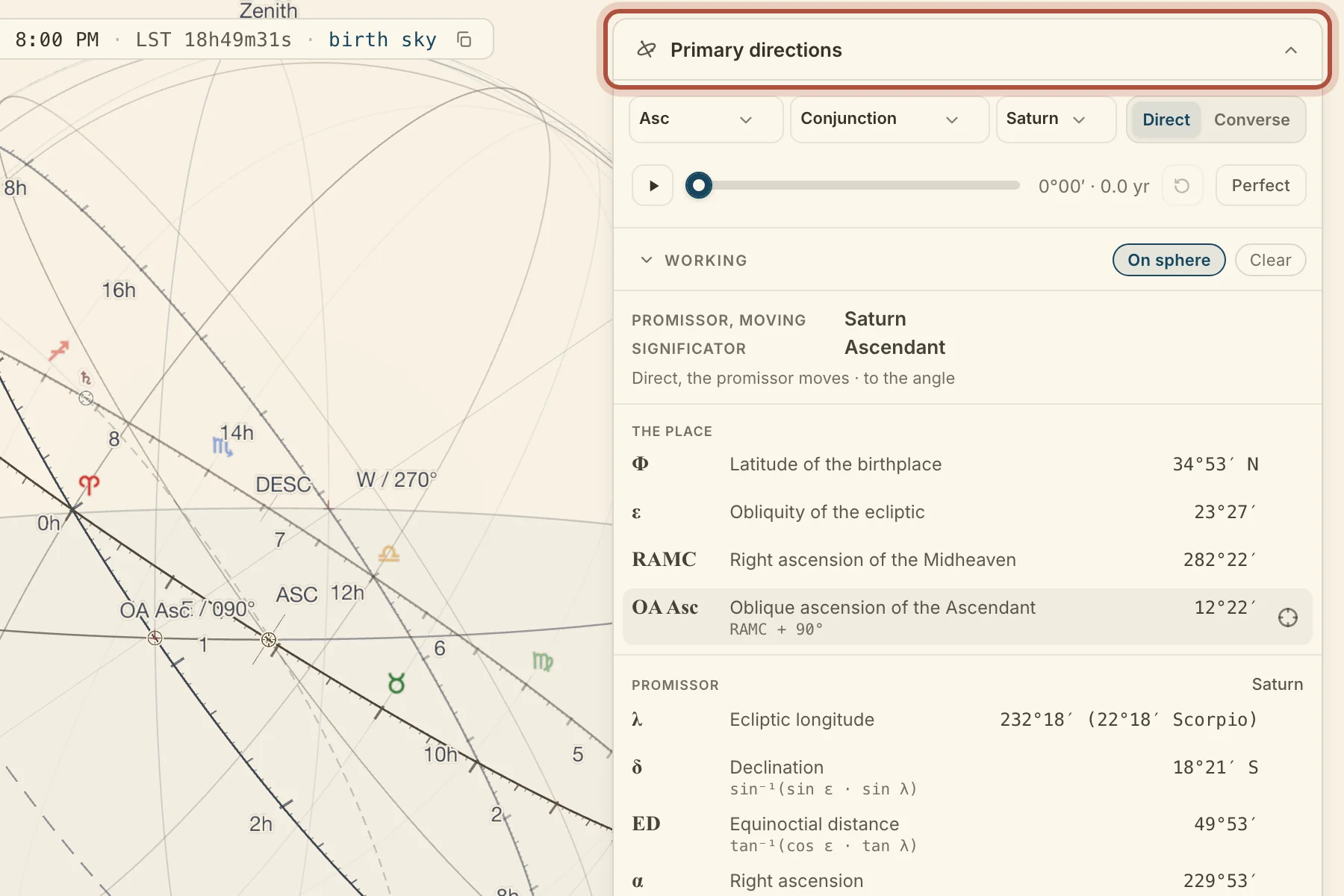
On a chart with a birth time, the Armillary carries a Primary directions panel, where you pick a direction and watch the sphere turn it from birth to perfection, with the arithmetic beside it. Click its heading to open or fold it. The technique and its settings are in Primary directions.
The top line picks a direction. Choose the significator (Ascendant, Midheaven, Descendant, Imum Coeli or a planet), the aspect, the promissor, and Direct or Converse. Dexter and sinister are separate choices for the sextile, square and trine.
The Primary directions panel on the Armillary
Under the picker, Play runs the sphere from birth to perfection, and the slider reads the arc and the years, so you can drag it to any point between. Back to the birth moment returns the turn to zero, and Perfect turns the sphere straight to perfection.
Working sets out the calculation step by step, down to the arc and the date. Point at a step to see it on the sphere, and click it to keep it drawn. Clear takes the direction off the sphere. Under Working, the Directions list gives every primary direction in the chart, and a click on a row puts that direction on the sphere.