
In this section (4)
Elect
Opening Elect
Elect searches a span of time for the moments that meet every condition you set, at one place, so you can find a moment for a client's wedding or launch and send it to them. It needs an account.
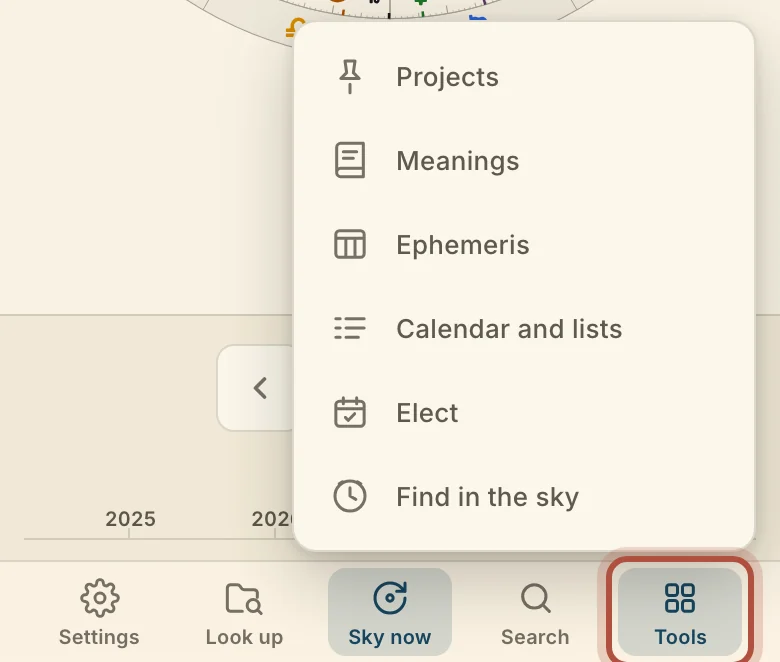
Click Elect in the top bar. You can also press ⌘K and choose Elect a moment.

Tap Tools in the bar along the bottom, then Elect.
An election search needs a place, a window of time to look through, and the conditions a moment has to meet.
- Type a city into Place. Click the place name later to change it.
- Set the window with From and To, or pick a length from Duration.
- Click Add a condition and build the first one. Add as many as the election needs.
- Click Find.
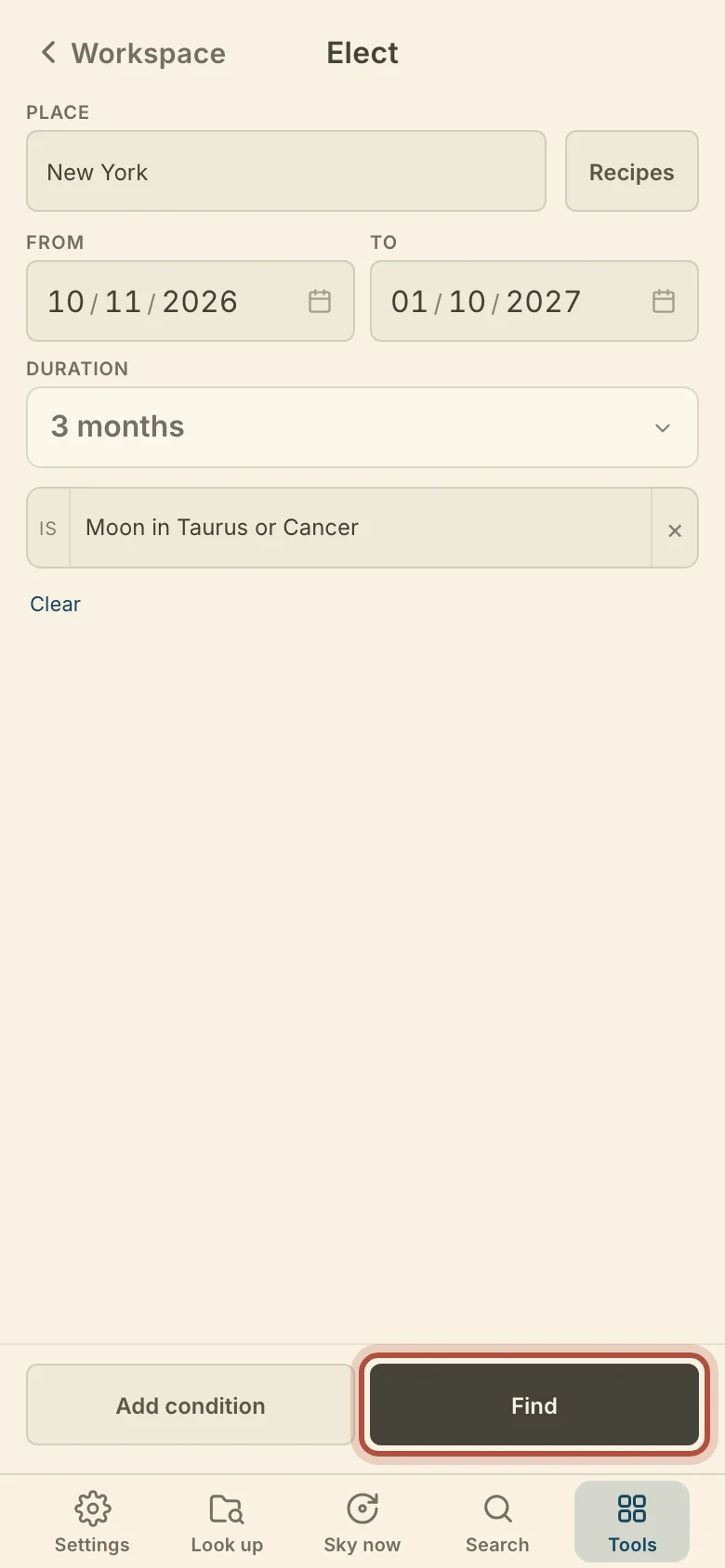
Clear removes every condition. To run the same conditions again in another window or place, save them as a recipe: click Recipes, type a name into Name this recipe, and click Save. Click a recipe's name to load it. Update overwrites a recipe with the conditions you have now, the pencil renames it and the bin deletes it.
Election conditions
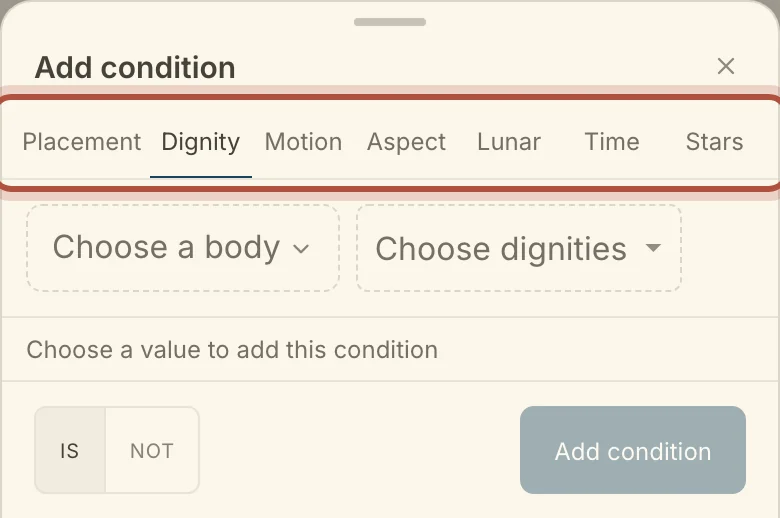
Conditions are the rules Elect tests at every moment in the window, and you build each one in the condition panel. Pick a category along the top of the panel, then the type, then the point and the values. The line under the panel reads the condition back as a sentence. Click Add condition to put it in the stack.
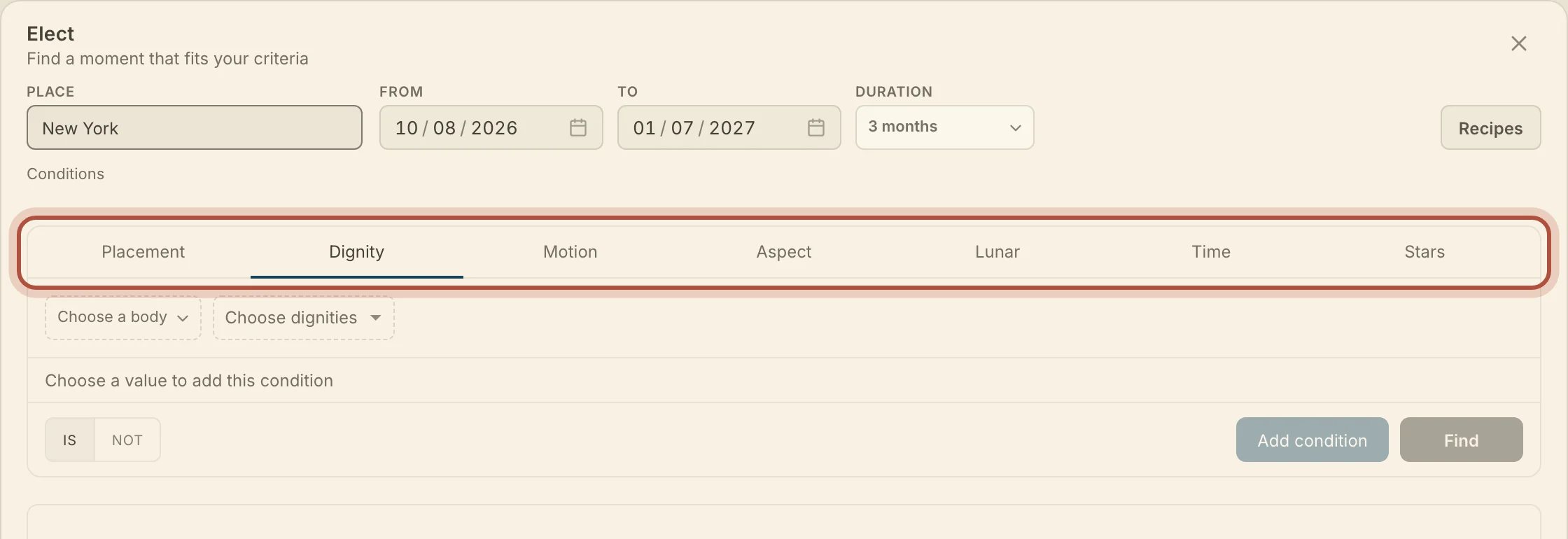
- Placement: a planet in a sign, house, element or modality, or angular, succedent or cadent.
- Dignity: a dignity or debility, from Domicile to Peregrine, then sect, rejoicing and hayz.
- Motion: Direct, Retrograde, Stationary, Fast or Slow.
- Aspect: an aspect between two points, with an Orb and Any, Applying or Separating, or Whole sign witnessing and aversion.
- Lunar: Moon phase, Moon void of course, and Near an eclipse, within a number of days.
- Time: Planetary hour, Planetary day, Sect (day / night), Day of week.
- Stars: Fixed star contact (Conjunction, Parallel, In mundo or Co-rising, with an orb) and Fixed star paran.
The point a condition asks about can be a planet, a node, an angle, a lot, or a house lord, which stands for whichever planet rules that house at each moment Elect tests. To exclude a condition, switch is to not before you add it. In the stack, click is or not on a condition to flip it, the condition itself to edit it, and × to remove it.
When a condition needs houses, Houses and Cusp orb appear beside the stack. Houses follows Settings until you choose another system, and the elected chart opens in the same system. Cusp orb is the number of degrees before a cusp that count toward the next house, and 0 keeps strict cusps.
Reading the election results
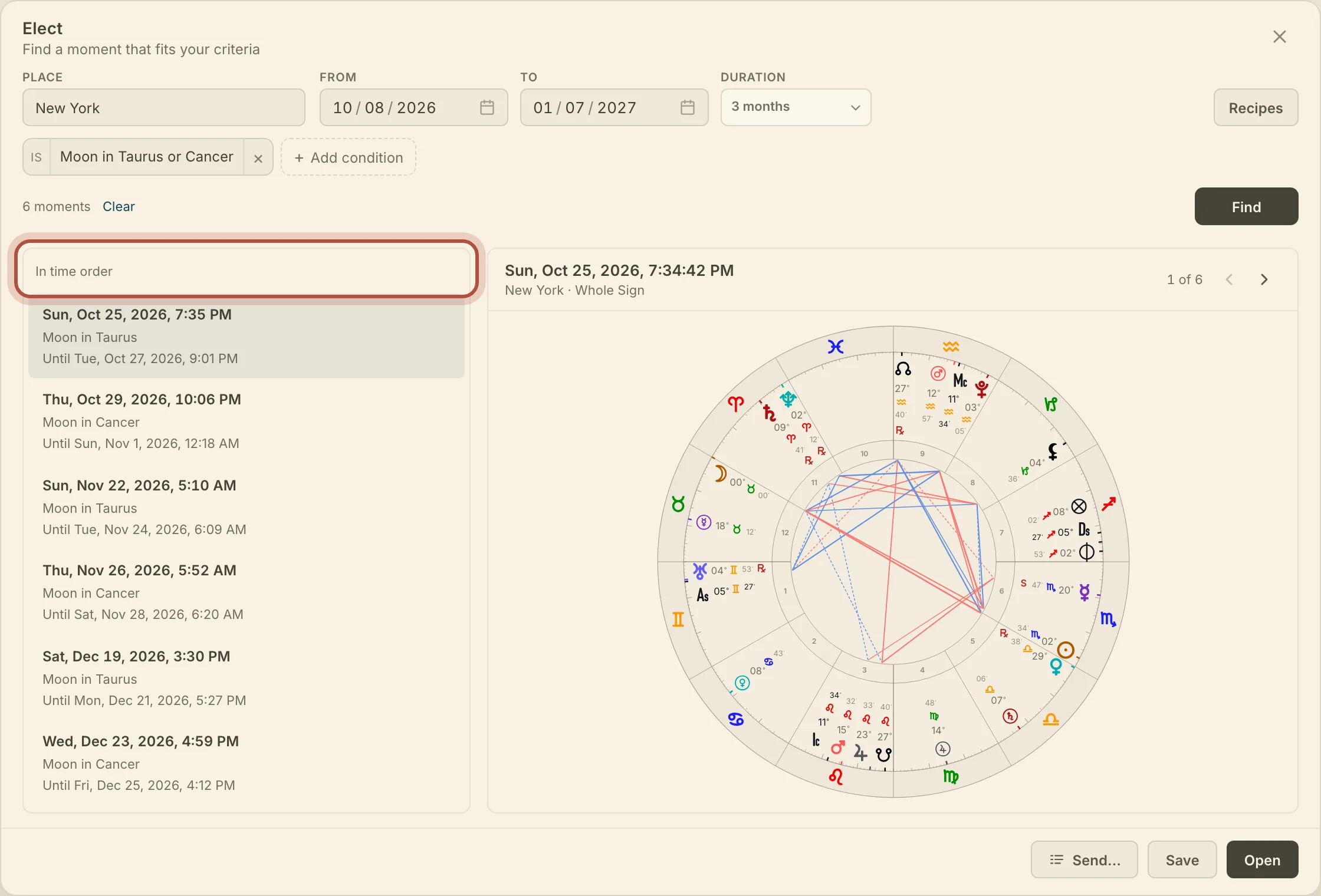
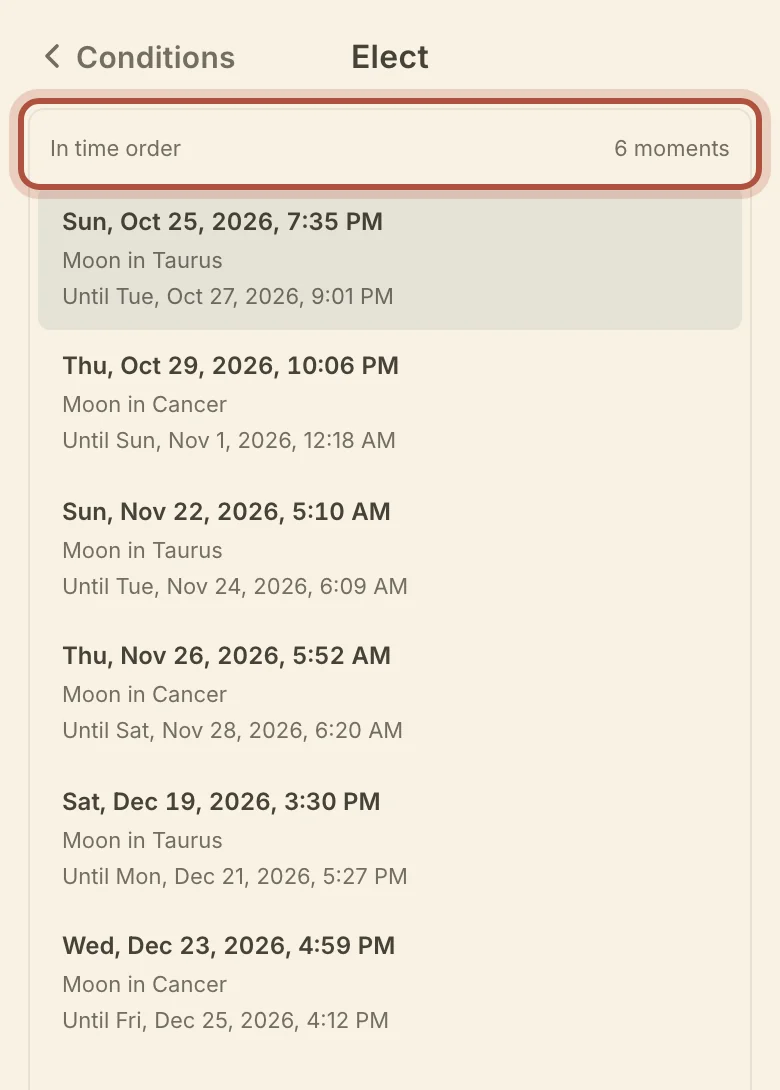
After a search, Elect lists every moment that meets your conditions down the left and draws the one you select as a wheel on the right, so you can compare them before you choose. When a condition carries an orb, choose Soonest for date order or Best fit to put the moments closest to exact first. Without an orb the list reads In time order.
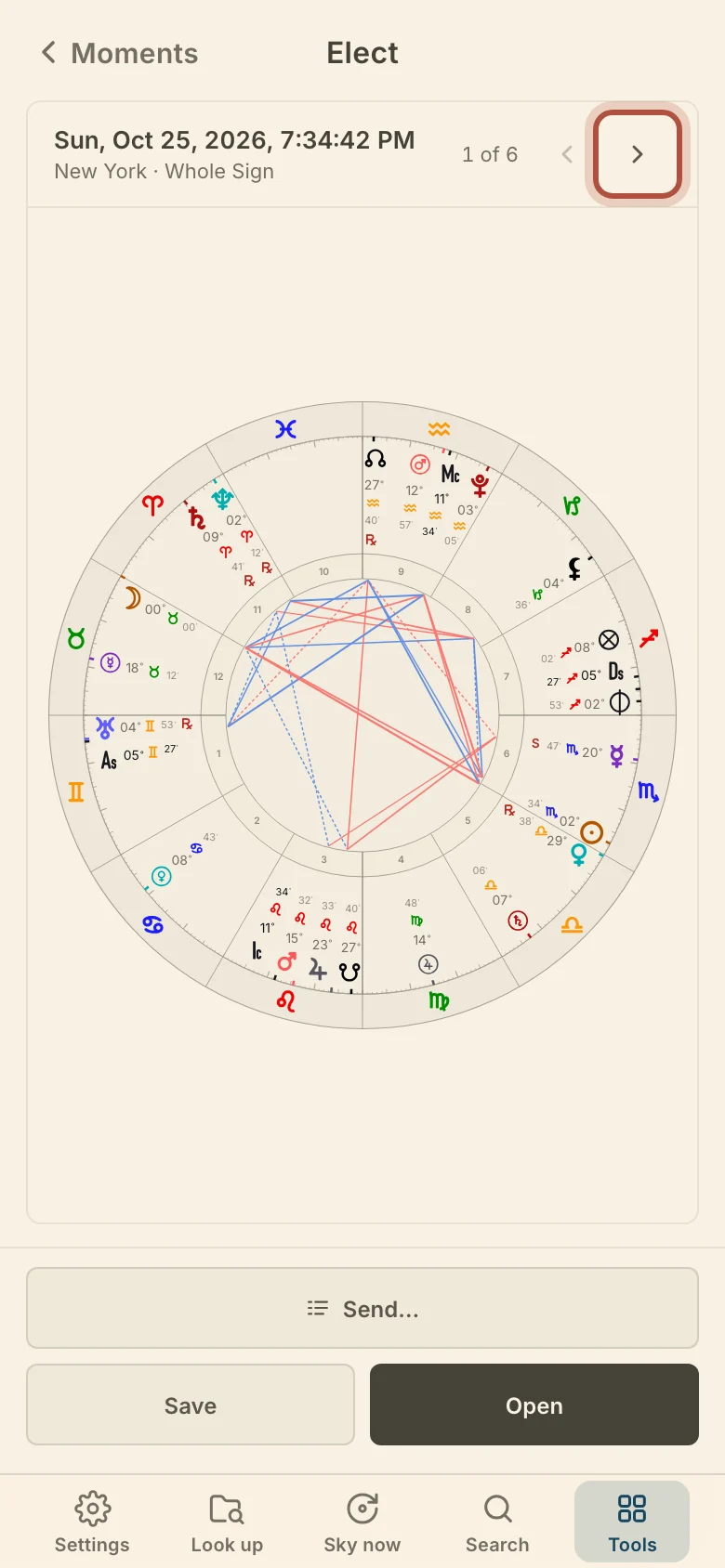
Step through the moments with the arrows above the wheel, or with the ↑ and ↓ keys. On a computer, double-click a row to open it.
Sending an election to a calendar or list
Once you have chosen a moment, you can keep it as a chart, open it on a tab, or send it to a calendar or a list for a client. Select it, then click Save to name the chart, choose a Folder and click Save chart. Open puts the moment on a tab without saving it.
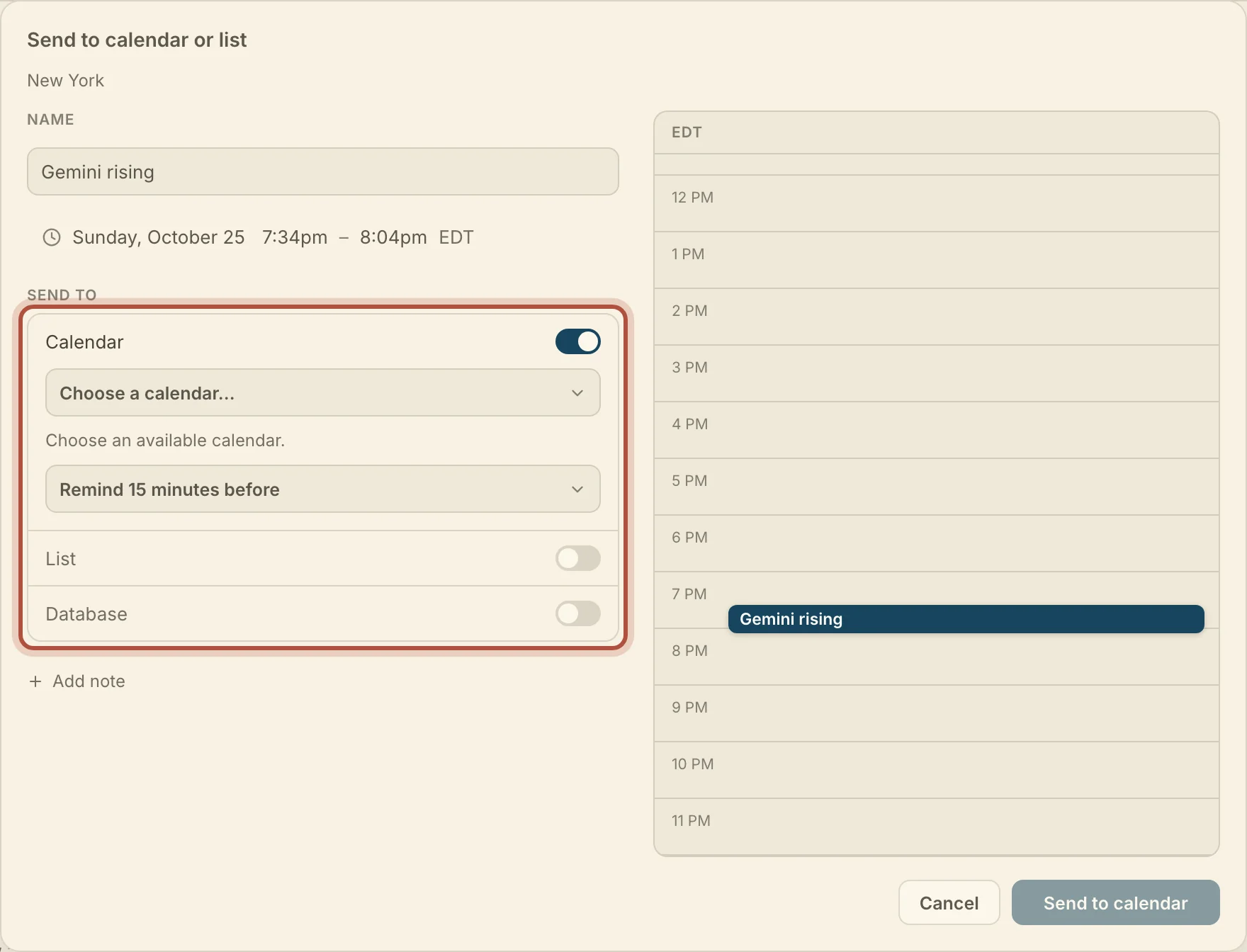
Send… opens the Send to calendar or list window on the moment's date and time. Change the Name, and set the end time for how long the event runs. The day beside the form shows what is already in your calendar. Add note puts a note on the event.
Under Send to, switch on one or more of these.
- Calendar sends the moment to a connected Google, Outlook or Apple calendar. Pick the calendar, then the Reminder, from none to 1 day before. Connect a calendar… at the foot of the picker adds an account (see Your account and data).
- List adds the moment to one of your lists, or to a new one if you choose New list…. Lists live in Calendar and lists, where you can publish or download them for a client.
- Database saves the moment as a chart in the folder you pick.
The same window opens from Send… in a wheel's list of rings. See Tabs, rings, and wheels.
Elect on a phone
Elect takes three screens on a phone. The first holds the place, the window and your conditions. Tap Add condition at the foot to build one in a sheet, then tap Find.
The second is the list of moments. Tap one to see its wheel. Once you have searched, the count of moments on the first screen brings you back here without searching again.
The third is the wheel, with Send…, Save and Open at the foot. The button at the top left goes back a screen.
Didn't answer it? Write to support@arcusastrology.com.