
In this section (4)
Arcus on a phone
Arcus on a phone has the same charts, techniques and settings as on a computer, laid out as modes you switch between, with the wheel on one screen and the techniques on another. This chapter is where the phone layout lives. The rest of the guide says "tap" where a step is the same on both, and marks the steps that differ.
Getting around on a phone
The mode switcher sits at the top with Dashboard, Chart, Research, Graph and Sphere, and you tap one or drag the lit one sideways. Research holds the techniques. The chart and the moment you are on carry across every mode.
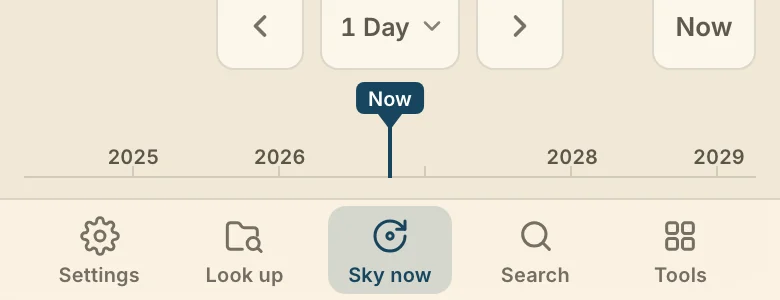
The bar along the bottom holds Settings, Look up, Sky now, Search and Tools. Settings opens Settings full screen, with your account under Account and skins under Appearance. Look up opens Saved Charts. Sky now opens the chart of this moment. Search looks through charts, techniques, settings and commands. Tools opens the research tools. Signed out, the last button is the way to sign in.
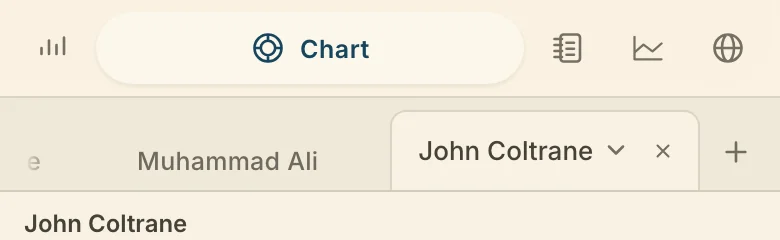
Workspace tabs sit at the top, under the mode switcher, and the same tabs follow you to Research, the Graph and the Sphere; the Dashboard has none. Tap + at the end of the strip to open another tab, which is also how you start a new chart. Close a tab with its ×, and the last tab stays. Tap the tab you are on for its chart menu, which on a phone also holds Cast… and Diagrams….
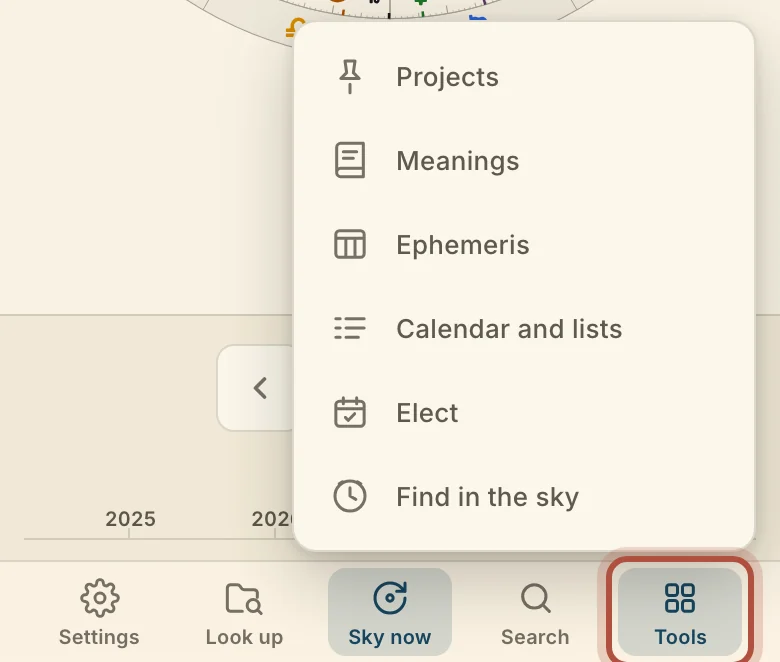
The Tools menu on a phone
Tools, at the right end of the bottom bar, holds the research tools that have no button of their own: Projects, on research projects; Meanings, the resource catalogue, on Meanings; Ephemeris, on the ephemeris; Elect, on Elect; Find in the sky, the event finder, on jumping to the next event; and Calendar and lists, on Calendar and lists.
Research on a phone
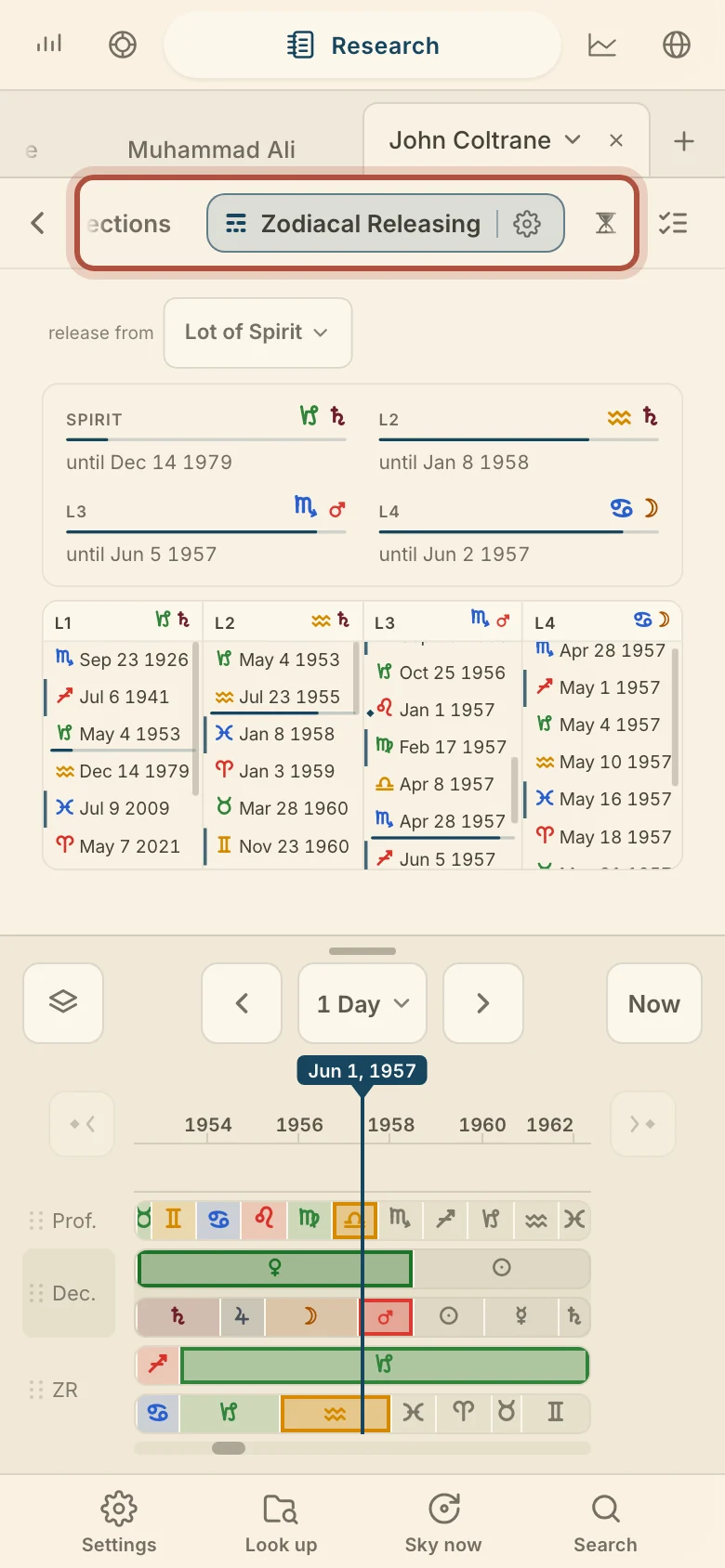
Research is where the techniques live on a phone, laid out as one grid of every technique you keep. Tap a card and the technique opens full screen, and swipe sideways for the next or previous technique. Find a technique, at the top of the grid, narrows the cards as you type. Press and hold a card, then drag it, to move it in the grid, and the swipe order follows.
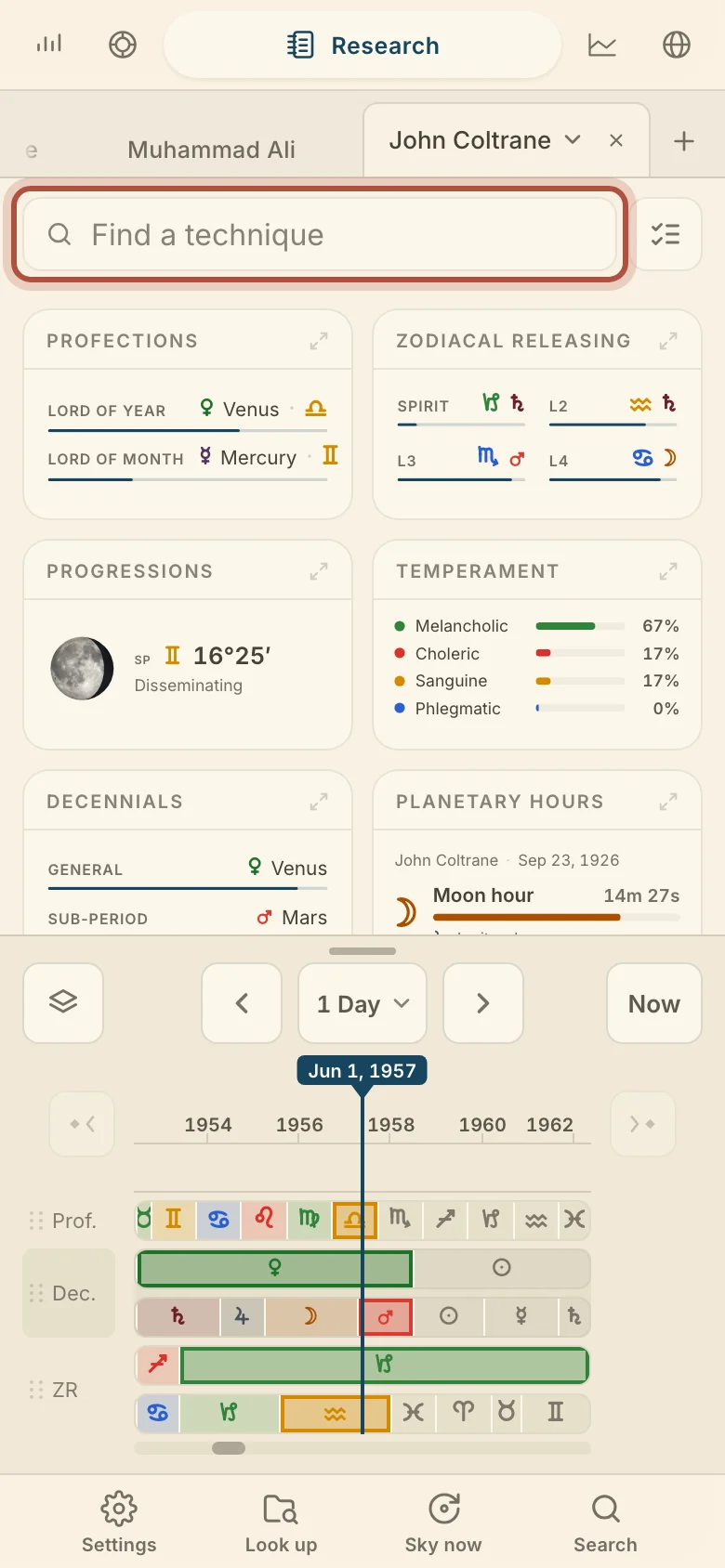
Along the top of a technique's page is a row of names, with the one you are on lit. Tap another name to go straight to it. Tap the lit name to flip the page to that technique's settings, and tap it again to flip back. The chevron at the left goes back to the grid.
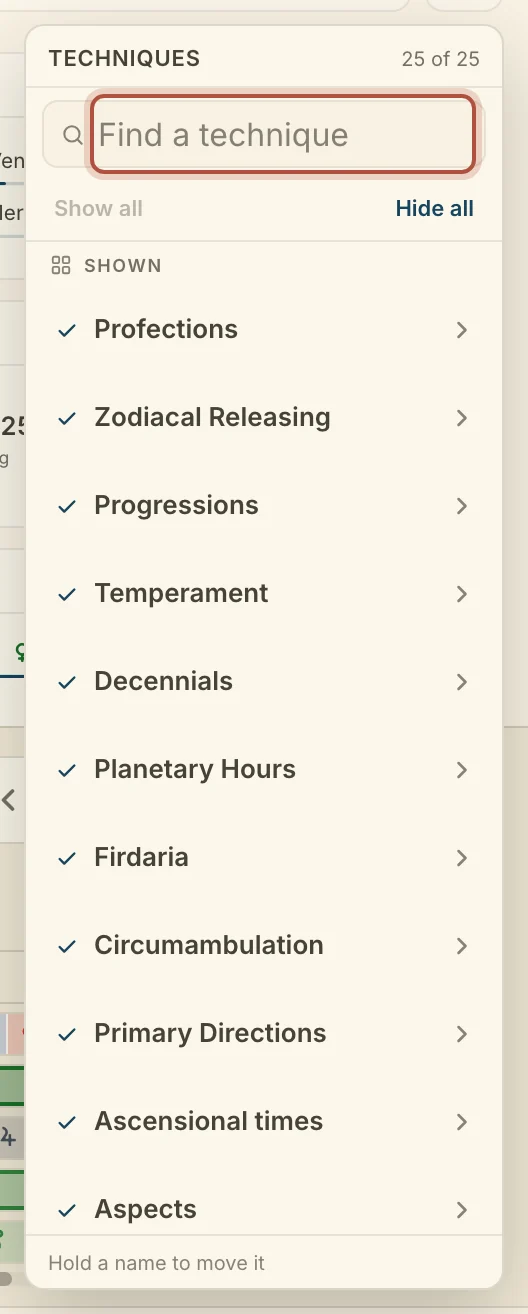
Choosing techniques on a phone
The Techniques button beside Find a technique chooses which techniques Research carries, and the same button sits at the right of each technique's page. Check or uncheck a technique to put it on the grid or take it off. The list has its own Find a technique, and Show all and Hide all. Hold a name and drag it to change its place, and the grid and the swipe order follow.
Long-press on a phone
On a phone, a long-press does the work a right-click does on a computer.
- Long-press the wheel for the wheel menu: points, aspects, zodiac, house system, rings, overlays and Save image. See right-click the wheel.
- Long-press a saved setup, in the Graph's Configurations or wherever setups are listed, for Set as default, Rename…, Update with current jobs and Delete…. See Graph setups.
- Press and hold a tab, then drag it, to reorder the tab strip.
- Press and hold a card on Research, or a name in the Techniques list, then drag it to a new place.
The life timeline on a phone
The life timeline sits at the bottom of the Chart and works as it does on a computer, with a few changes to fit the screen. At most three lanes show at once, so turn one off to make room for another. Pinch to zoom. One finger slides the timeline, a tap places the playhead, and dragging the playhead line scrubs. The step arrows and the interval sit in the middle of the timeline bar, with Now at its right, and the arrows at either end of the events lane step between your events. The lanes themselves are on the life timeline.
What the phone does not have
A few parts of Arcus are on the computer only.
- The Armillary view of the Sphere. A phone has Sky and Earth.
- The Jobs window. A phone edits the Graph's jobs in Configurations, on the Graph bar.
- Export PDF for a research project.
- Keyboard shortcuts and the Keyboard settings.
- Beside, when a cast chart or a diagram opens. A phone has Ring and Replace.
- The reading column on the Dashboard. Links from the cards open Research.
Didn't answer it? Write to support@arcusastrology.com.