
In this section (4)
Skins
Skins set the colours of Arcus and can lay a picture behind the workspace, so you can work in a light or dark look, or make one of your own.
Switching skins
Skins set the colours of Arcus, and some lay a picture behind the workspace, so you can work in a light or dark look or one of your own.
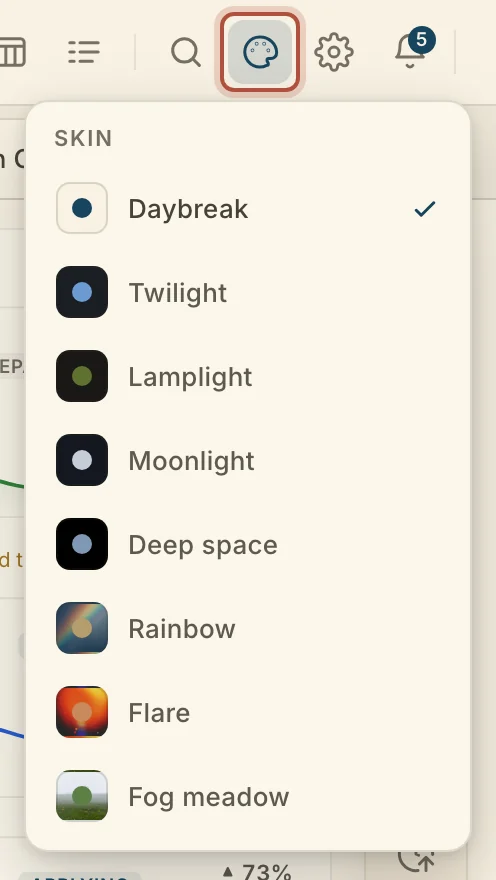
Click Skin in the top bar and pick one. The same list sits in the account menu at the far right of the bar. Drag a skin up or down the list to reorder it.
Tap Settings, then Appearance, and tap a skin.
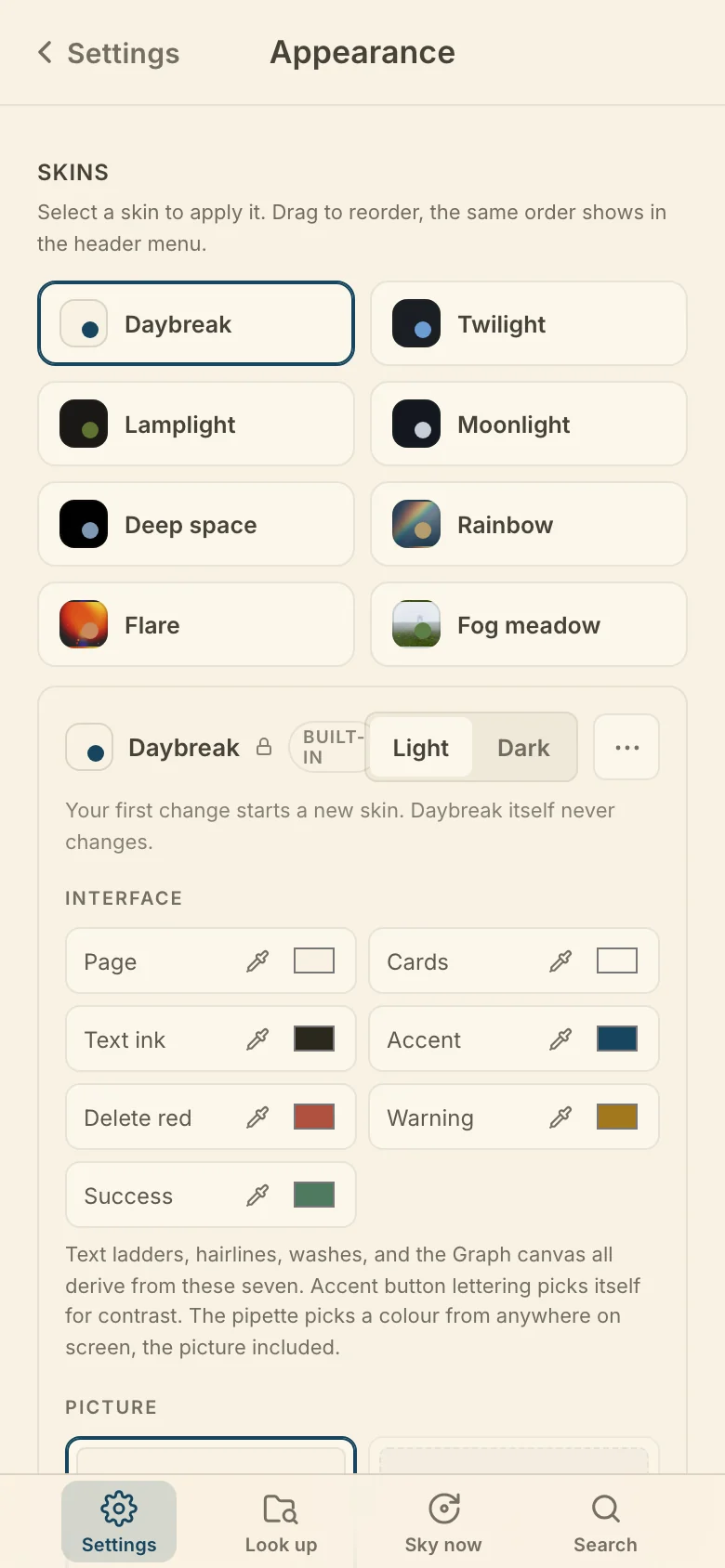
Arcus comes with a set of skins ready to wear. Daybreak is the skin Arcus opens on, and Twilight, Lamplight and Moonlight are the others. Deep space, Rainbow, Flare and Fog meadow are picture skins: on a computer the picture sits behind the Chart, Graph and Sphere, while the Dashboard and a phone show the colours without the picture.
Making your own skin
You can make a skin of your own, starting from any skin in the list. Open Settings, then Appearance, and select the skin to start from. The editor under the list shows its name, Light or Dark, and its colours. Change anything on a built-in and a new card appears in the list, marked unsaved and worn straight away, while the built-in stays as it was. Your own skins are marked yours. Name the skin in the field at the top of the editor.
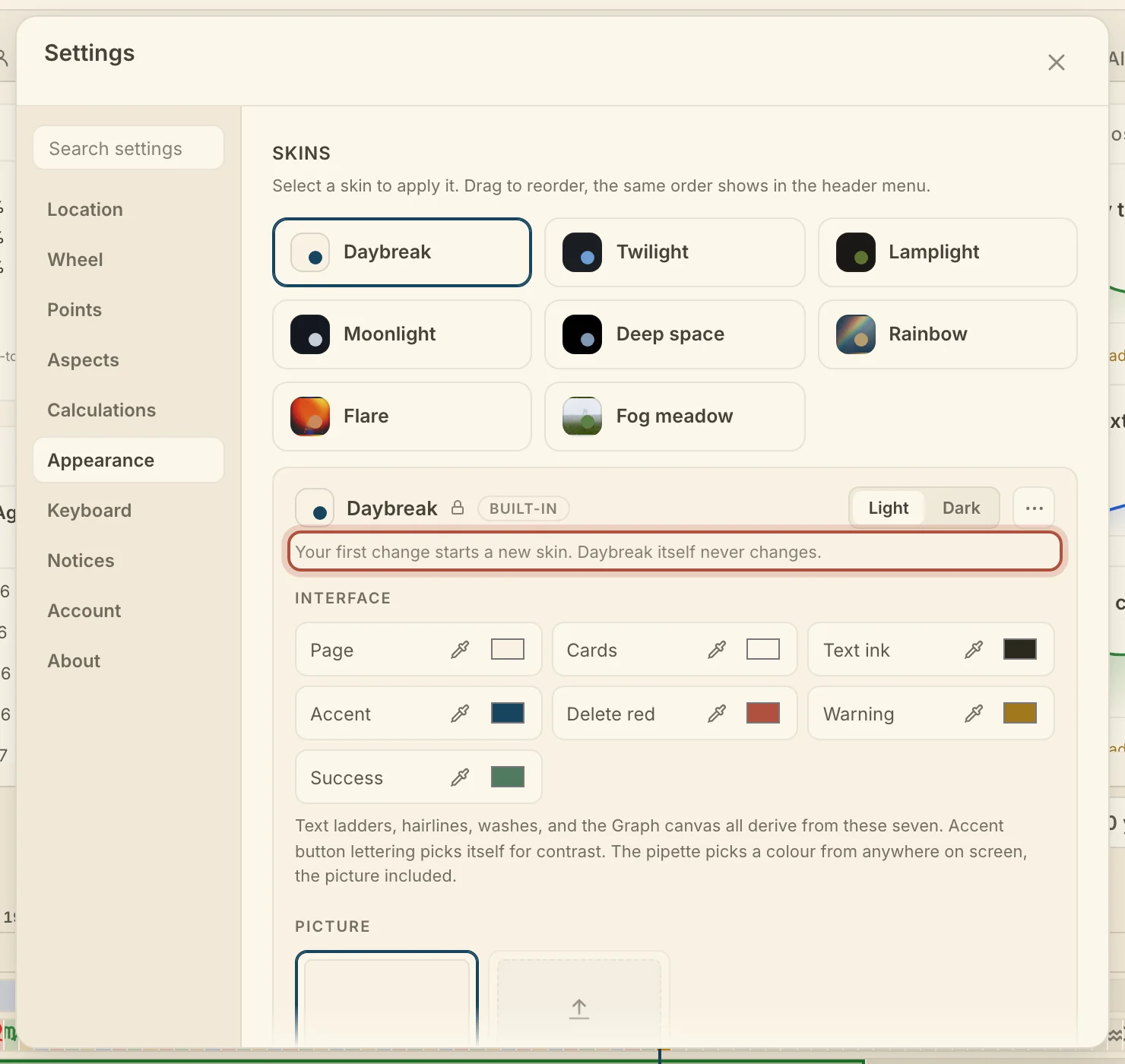
Interface sets the colours of the screens and controls around the chart, and holds the seven colours the rest of the palette is built from. Chart colors sets the colours on the wheel, in Elements, Planets, Signs and Aspects. Click a swatch or a glyph to choose a colour, or use the pipette beside a swatch to pick one from anywhere on screen. A changed colour gets a dot beside it, and clicking the dot puts the original back.
Picture chooses what sits behind the workspace on a computer. None leaves the plain page. Add your own uploads a picture of yours, once you are signed in, and a landscape picture at least 2500 pixels wide works best. Wash lays the page colour over the picture, and Blur softens it. A built-in picture skin keeps its own picture, and moving Wash or Blur on it starts a new skin.
Saving, duplicating and deleting a skin
Save your changes from the bar at the foot of the editor. On a new skin the bar offers Save skin and Discard. On one of your own, Save to and the name keeps the changes in that skin, Save as new skin keeps both, and Discard changes throws them away.
The … beside the skin's name holds Duplicate skin and, on your own skins, Delete skin….
A saved skin goes with your account to every device you sign in on. Unsaved changes stay on the device.
Didn't answer it? Write to support@arcusastrology.com.