
In this section (3)
Notes and events
Opening the Notes and events window
The Notes and events window holds everything written on one chart, so a client's history and your own readings stay with the chart. An event has a date and sits on the timeline. A note has no date and belongs to the whole chart.
- Click the active tab and choose Notes and events….
- Click Notes and events on the timeline bar.
- Press ⌘K and type "Notes and events".
- In Saved Charts, click a record on the Notes and events tab of the preview.
The tabs are All, About, Import and Tags. About holds the public record for a well-known person, with a box under it for your own notes on who they are.
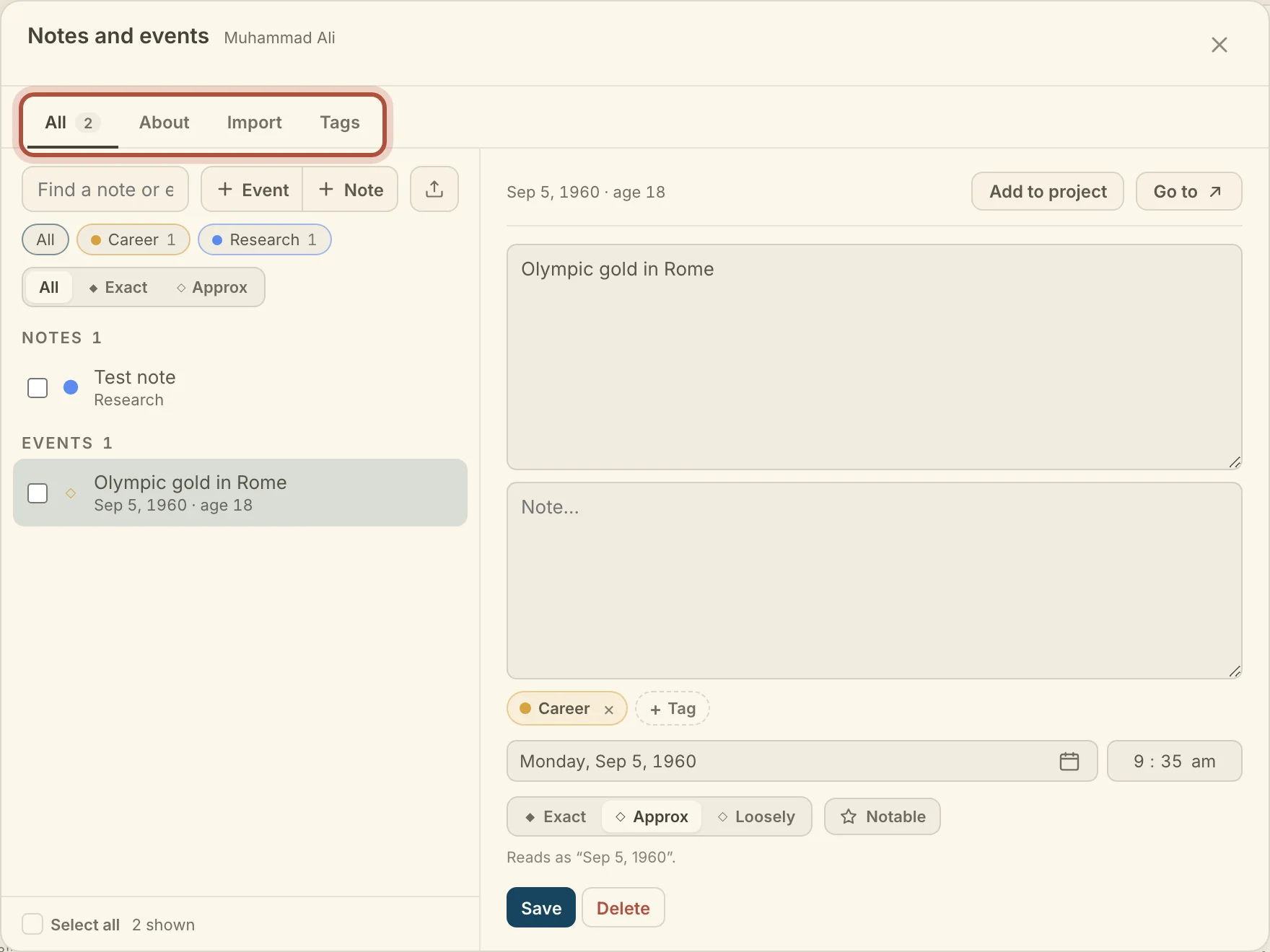
The window opens on the list. Tap a record to open it. Notes and events at the top goes back to the list.
Adding and editing need an account.
Finding a note or event
On a chart with many records, type in Find a note or event… above the list. The tag chips under it narrow the list to the tags you pick, and All brings every tag back. Exact and Approx narrow events by how well the date is known. To delete several records, tick them, click Delete and confirm.
To find a note or event without remembering which chart it is on, search from Saved Charts. Switch from Charts to Notes and events beside the search box, and the list holds the records from every chart. The row under the box narrows it to Notable, All, Notes or Events. Click a record to read it. Double-click it, or click Open event, to open its chart with the timeline on that event.
Adding and editing notes and events
You add notes and events from the Notes and events window, and both are written in the same editor. Click + Event or + Note above the list. A new event starts on the date the timeline is on. To add one at a chosen point on the timeline, see the events lane on the life timeline.
The editor holds these fields.
- Title, then the text in Note….
- Tag. See tagging notes and events.
- Date and time, for an event, in local time where the chart was cast.
- Exact, Approx or Loosely, for an event. Exact is a pinned day and time. Approx means only the day is known. Loosely means the date is only roughly known, and it reads with "c." in front.
- Notable stars the record. It is the first filter in the notes and events search in Saved Charts.
- Pin to project files the record on a research project when you save.
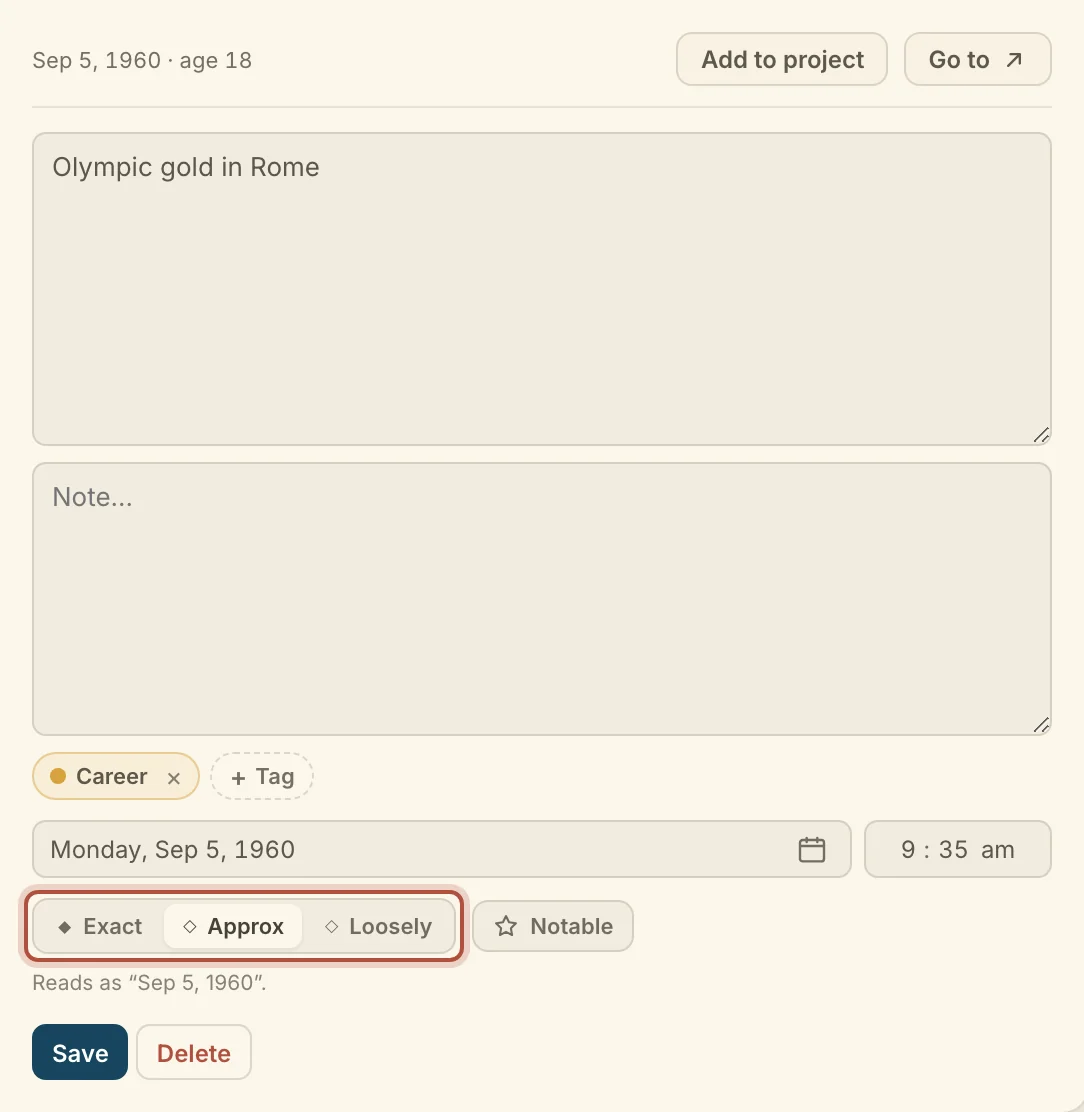
Click Save, or press ⌘Enter.
With a record open, Add to project in the bar above the editor files it on a research project. To file several, tick them, then click Add to project in the footer. Go to, in the same bar, closes the window and puts the timeline on that event.
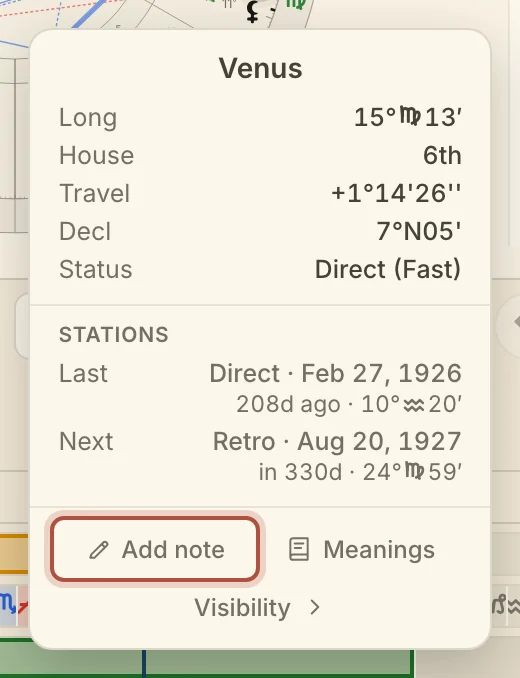
You can also write a note about a single planet or point from the chart wheel. Click the point, then Add note on its card, and the note opens tagged with the point, its sign and its house. On the sky, a Name this chart box appears above the note, and saving casts an event chart for that moment into your library and files the note on it.
Tagging notes and events
Tags sort your notes and events by topic and by the planets, points, signs and houses they involve, so you can filter a chart's records and color its markers. To tag a record, click + Tag in the editor and pick from the list, or type to search it. Type a name that is not there and choose Create to make a new tag.
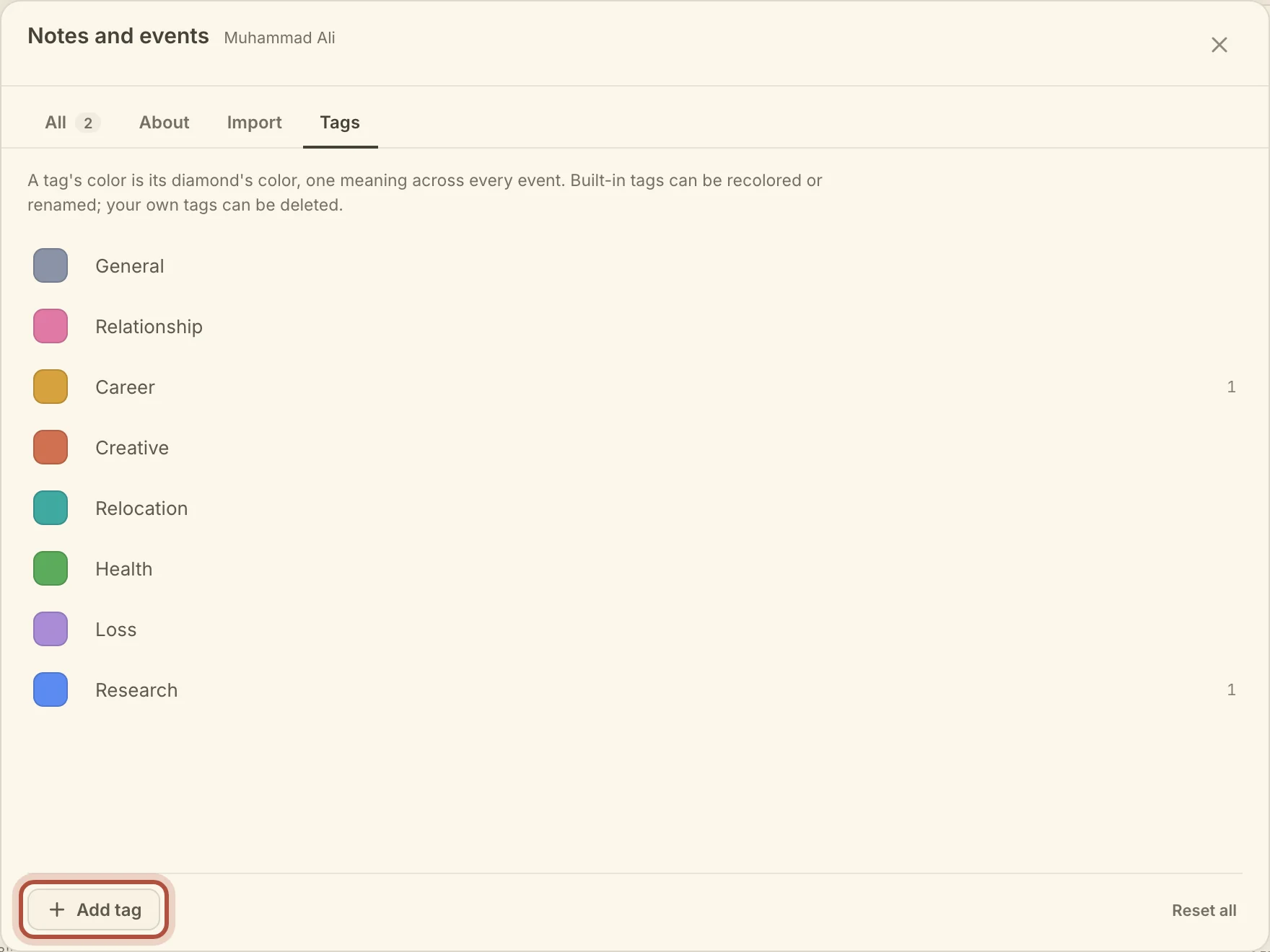
Topics are your own life topics, each with a color. The other tags are fixed: planets, angles, lots, fixed stars, minor planets, signs and houses. Tag a divorce South Node and 7th House, and it turns up under either. A record can carry several topics. The first one colors its marker on the timeline and the Graph.
The Tags tab lists your topics, which are the same on every chart. Click a swatch to recolor a topic, or its name to rename it. Add tag makes a new topic, Reset puts a built-in back, and Reset all returns every topic to the built-ins.
Importing and exporting notes and events
For a well-known person you can bring in their life events from Wikidata, or paste in a list of events you already have, so you do not have to type each one.
- On the Import tab, choose Wikidata or Paste / file.
- For Wikidata, type the person's name, click Search and pick the right person. For Paste / file, paste one event per line, a date then a title, or drop a .txt, .csv or .json file on the box, or click Choose file…. Then click Review.
- Tick the events you want.
- Click Add.
An event dated only to the month or year comes in marked Loosely.
To keep a copy of a chart's notes and events, or work with them in another program, click the export button beside + Note and choose Text file or Spreadsheet. To export every chart's notes and events at once, use Export your data, on taking your charts back out.
Didn't answer it? Write to support@arcusastrology.com.