
In this section (4)
Tabs, rings, and wheels
The chart menu on a workspace tab
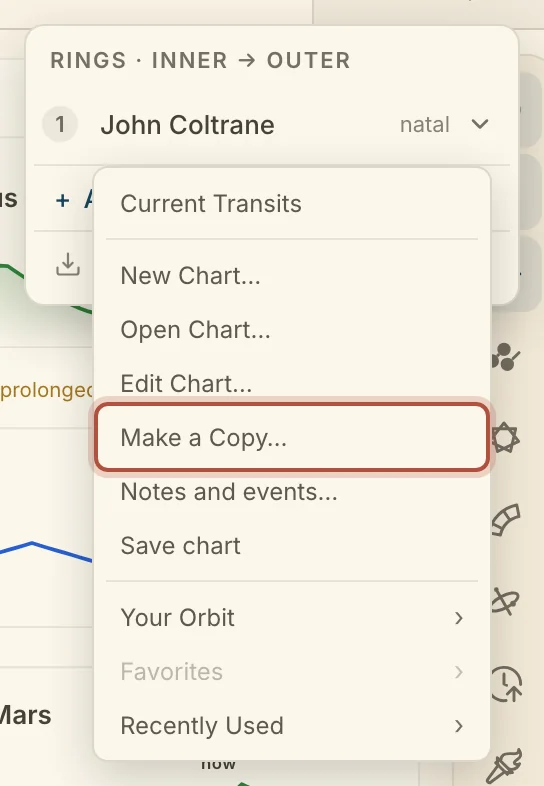
Each workspace tab has a menu for the chart it holds, where you can swap in another chart, correct this one or save it. Click the active tab to reach it. On the Chart screen it opens the rings on that tab, and you click a ring's name for that chart's menu. On the Graph the active tab opens the chart's menu straight away.
- Current Transits puts the live sky in this place.
- New Chart…, Open Chart… and Edit Chart… put a new chart here, put a saved one here, or correct this one.
- Make a Copy… opens the Copy chart window, on making a copy of a chart.
- Add to Favorites stars a saved chart. Remove from Favorites takes the star off.
- Notes and events… opens everything written about this chart.
- Save chart files a working chart in your charts.
- Your Orbit, Favorites and Recently Used each open a list of charts to switch to.
A tab holding one of your favorite charts shows a star after its name, and favorites are also listed in the + menu at the end of the strip and in Saved Charts. A tab holding more than one chart shows a second mark. Hover it to read how many rings are on one wheel, or how many wheels are side by side.
Dragging rings and wheels
Every chart on the workspace can be picked up and moved, so you can combine charts on one wheel or pull them apart again. Pick up a chart by its name card in the corner. With a mouse or a pen you can also grab its ring on the wheel itself, and the outer ring carries the outer chart. As you drag, a card says what letting go will do.
- Drop it on another wheel to add it to that wheel as a ring. The card reads Add as a ring.
- Drop it on the empty ground beside the wheel to open it as a wheel of its own, or to split an outer ring off. The card reads Open beside.
- Drop it up in the tab strip to give the chart its own tab. The card reads Release for its own tab.
- Drop it on another ring's band to swap the two charts.
Hover a name card for its ×, which takes that ring off the wheel.
A tab can be dragged the same way. Pull it down off the strip and over the workspace, and over a wheel it reads Add as a ring, over the empty ground beside the wheel Open beside.
On a phone the wheel takes pinch and pan. Drag a chart by its name in the row above the wheel.
The rings on a tab
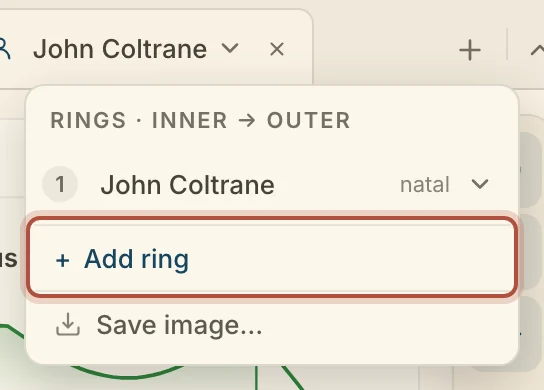
A tab can hold several charts stacked as rings on one wheel, and the rings list is where you order and manage them. On the Chart screen, click the active tab for the list headed Rings · inner → outer.
- Drag a row by its grip to change the order.
- ⇅ swaps the inner and outer ring.
- × removes a ring.
- Click a ring's name for its chart menu.
- + Add ring adds another ring, starting on the live sky.
- Send… opens Send to calendar or list.
- Save image… opens the Save chart image window.
On the Sphere the same list marks which ring the Sphere is showing, and the circle beside each row switches to it.
Didn't answer it? Write to support@arcusastrology.com.